Dotfiles sind das Geheimnis effizienter Entwickler. Sie ermöglichen es, Konfigurationen zu versionieren, zwischen Systemen zu synchronisieren und bei Bedarf in Sekunden eine vertraute Arbeitsumgebung wiederherzustellen.
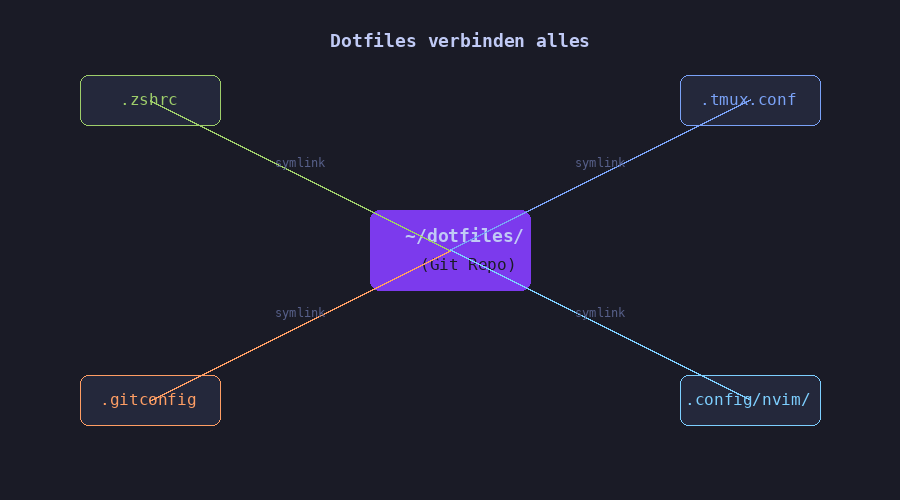 Dotfiles verbinden alle deine Konfigurationen
Was sind Dotfiles?
Dotfiles sind Konfigurationsdateien in Unix-ähnlichen Systemen, deren Namen mit einem Punkt (.) beginnen. Der Punkt macht sie standardmäßig unsichtbar im Dateisystem - daher der Name “dotfiles”.
1
2
3
4
5
6
7
8
| # Versteckte Dateien anzeigen
ls -la ~
# Ausgabe (Auszug):
# .bashrc
# .zshrc
# .gitconfig
# .config/
# .ssh/
|
Typische Dotfiles
| Datei |
Anwendung |
Funktion |
.bashrc / .zshrc |
Bash / Zsh |
Shell-Konfiguration |
.gitconfig |
Git |
Git-Einstellungen & Aliases |
.vimrc |
Vim |
Editor-Konfiguration |
.tmux.conf |
tmux |
Terminal-Multiplexer |
.config/nvim/ |
Neovim |
Neovim-Konfiguration |
.ssh/config |
SSH |
SSH-Verbindungen |
Das .config Verzeichnis
Moderne Anwendungen nutzen das XDG Base Directory Konzept und speichern Konfigurationen in ~/.config/:
1
2
3
4
5
6
7
8
9
| ~/.config/
├── nvim/ # Neovim
│ ├── init.lua
│ └── lua/
├── alacritty/ # Alacritty Terminal
│ └── alacritty.toml
├── kitty/ # Kitty Terminal
│ └── kitty.conf
└── starship.toml # Starship Prompt
|
Warum Dotfiles versionieren?
%%{init: {'theme': 'dark'}}%%
flowchart LR
    A[Lokale Änderung] --> B[Git Commit]
    B --> C[Push zu GitLab]
    C --> D[Pull auf Server 1]
    C --> E[Pull auf Server 2]
    C --> F[Pull auf Laptop]

    style C fill:#7c3aed,stroke:#a78bfa,color:#fff
1. Backup & Wiederherstellung
Festplatte kaputt? Neuer Laptop? Mit versionierten Dotfiles ist deine Arbeitsumgebung in Minuten wiederhergestellt:
1
2
3
| git clone [email protected]:user/dotfiles.git ~/dotfiles
cd ~/dotfiles
./install.sh # Symlinks erstellen
|
2. Synchronisation zwischen Systemen
Arbeite auf mehreren Maschinen mit identischer Konfiguration:
- Desktop-PC zu Hause
- Laptop unterwegs
- Server im Homelab
- VMs in der Cloud
3. Historie & Rollback
Git speichert jede Änderung. Funktioniert etwas nicht mehr?
1
2
3
4
5
6
| git log --oneline
# a1b2c3d Fix: zsh completion
# e4f5g6h Add: tmux vim-navigation
# i7j8k9l Initial commit
git checkout e4f5g6h -- zsh/.zshrc # Alte Version wiederherstellen
|
4. Lernressource
Dotfiles anderer Entwickler sind eine Goldgrube für Tipps und Tricks:
- Neue Aliases entdecken
- Effizientere Keybindings lernen
- Best Practices übernehmen
“Steal from the best, learn from the rest” - Eine gute Dotfiles-Sammlung ist jahrelang gewachsenes Wissen.
Dotfiles-Struktur
Empfohlene Verzeichnisstruktur
1
2
3
4
5
6
7
8
9
10
11
| ~/dotfiles/
├── zsh/
│ └── .zshrc
├── tmux/
│ └── .tmux.conf
├── git/
│ └── .gitconfig
├── nvim/
│ └── init.lua
├── install.sh # Setup-Script
└── README.md
|
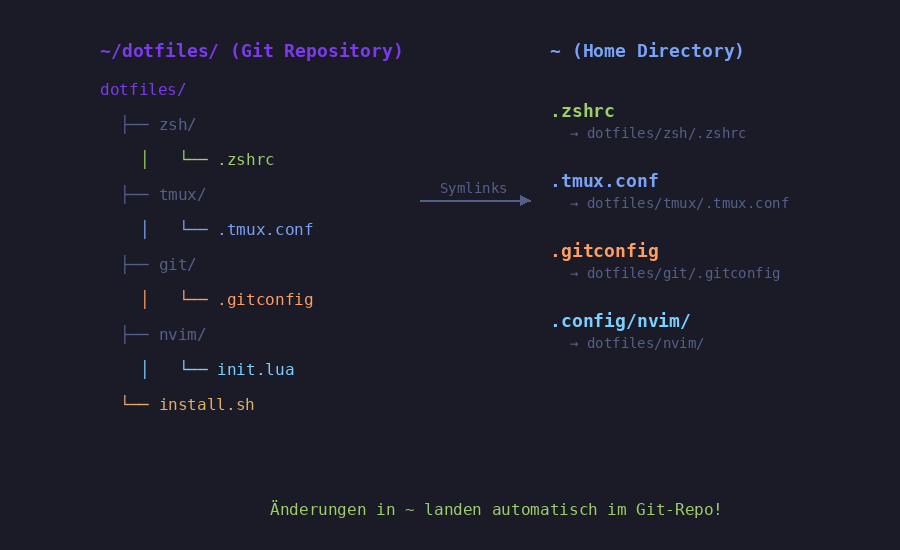 Organisierte Dotfiles-Struktur mit Symlinks
Das Symlink-Prinzip
Dotfiles werden nicht direkt in ~ bearbeitet, sondern:
- Originale liegen im Git-Repository (
~/dotfiles/)
- Symlinks in
~ zeigen auf die Originale
%%{init: {'theme': 'dark'}}%%
flowchart LR
    subgraph Home["~ (Home)"]
        A[".zshrc"]
        B[".tmux.conf"]
        C[".gitconfig"]
    end

    subgraph Repo["~/dotfiles/"]
        D["zsh/.zshrc"]
        E["tmux/.tmux.conf"]
        F["git/.gitconfig"]
    end

    A -->|Symlink| D
    B -->|Symlink| E
    C -->|Symlink| F

    style Repo fill:#1e3a5f,stroke:#60a5fa
Vorteil: Änderungen in ~/.zshrc landen automatisch im Git-Repository!
Dotfiles einrichten
Schritt 1: Repository erstellen
1
2
3
4
5
6
7
8
9
10
| # Lokales Verzeichnis erstellen
mkdir ~/dotfiles
cd ~/dotfiles
git init
# Erste Dateien hinzufügen
mkdir zsh tmux git
cp ~/.zshrc zsh/
cp ~/.tmux.conf tmux/
cp ~/.gitconfig git/
|
Schritt 2: GitLab Repository anlegen
- In GitLab neues Projekt erstellen (z.B.
dotfiles)
- Visibility: Private (enthält möglicherweise sensible Daten!)
- Remote hinzufügen:
Schritt 3: Symlinks erstellen
1
2
3
4
5
6
7
8
| # Alte Dateien sichern
mv ~/.zshrc ~/.zshrc.backup
mv ~/.tmux.conf ~/.tmux.conf.backup
# Symlinks erstellen
ln -sf ~/dotfiles/zsh/.zshrc ~/.zshrc
ln -sf ~/dotfiles/tmux/.tmux.conf ~/.tmux.conf
ln -sf ~/dotfiles/git/.gitconfig ~/.gitconfig
|
Schritt 4: Push zu GitLab
1
2
3
| git add .
git commit -m "Initial dotfiles"
git push -u origin main
|
Install-Script erstellen
Ein Install-Script automatisiert das Setup auf neuen Systemen:
1
2
3
4
5
6
7
8
9
10
11
12
13
14
15
16
17
18
19
20
21
22
23
24
25
26
27
28
29
30
31
32
33
34
35
36
37
| #!/bin/bash
# ~/dotfiles/install.sh
DOTFILES_DIR="$HOME/dotfiles"
# Funktion zum Erstellen von Symlinks
create_symlink() {
local source="$1"
local target="$2"
# Backup falls Datei existiert (kein Symlink)
if [ -f "$target" ] && [ ! -L "$target" ]; then
echo "Backup: $target -> ${target}.backup"
mv "$target" "${target}.backup"
fi
# Symlink erstellen
ln -sf "$source" "$target"
echo "Symlink: $target -> $source"
}
echo "=== Dotfiles Installation ==="
# Shell
create_symlink "$DOTFILES_DIR/zsh/.zshrc" "$HOME/.zshrc"
# tmux
create_symlink "$DOTFILES_DIR/tmux/.tmux.conf" "$HOME/.tmux.conf"
# Git
create_symlink "$DOTFILES_DIR/git/.gitconfig" "$HOME/.gitconfig"
# Neovim (Verzeichnis)
mkdir -p "$HOME/.config"
create_symlink "$DOTFILES_DIR/nvim" "$HOME/.config/nvim"
echo "=== Installation abgeschlossen ==="
|
1
2
3
4
5
| # Ausführbar machen
chmod +x ~/dotfiles/install.sh
# Ausführen
~/dotfiles/install.sh
|
GitLab Integration
SSH-Key einrichten
Für passwortlosen Zugriff auf GitLab:
1
2
3
4
5
| # Key generieren (falls nicht vorhanden)
ssh-keygen -t ed25519 -C "[email protected]"
# Public Key anzeigen
cat ~/.ssh/id_ed25519.pub
|
Den Public Key in GitLab hinterlegen:
- Settings → SSH Keys
- Key einfügen und speichern
Repository klonen
Auf einem neuen System:
1
2
3
4
5
6
7
8
9
| # Repository klonen
git clone [email protected]:username/dotfiles.git ~/dotfiles
# Install-Script ausführen
cd ~/dotfiles
./install.sh
# Shell neu laden
source ~/.zshrc
|
Workflow: Änderungen synchronisieren
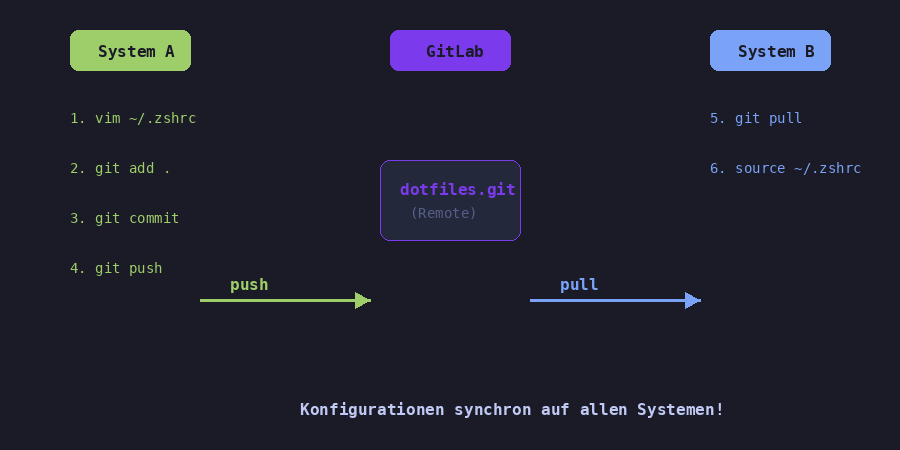 Der typische Dotfiles-Workflow
Auf System A (Änderung machen):
1
2
3
4
5
6
7
8
| # Konfiguration bearbeiten
vim ~/.zshrc
# Änderungen committen
cd ~/dotfiles
git add .
git commit -m "zsh: Neuer Alias für docker"
git push
|
Auf System B (Änderung übernehmen):
1
2
3
4
5
6
7
8
| cd ~/dotfiles
git pull
# Bei Shell-Configs: neu laden
source ~/.zshrc
# Bei tmux: Config neu laden
tmux source-file ~/.tmux.conf
|
Praxis-Beispiel: Meine Dotfiles
Verzeichnisstruktur
1
2
3
4
5
6
7
8
9
10
11
| ~/dotfiles/
├── zsh/
│ └── .zshrc # Zsh mit Zinit, Powerlevel10k
├── tmux/
│ └── .tmux.conf # tmux mit vim-Navigation
├── git/
│ └── .gitconfig # Git-Aliases & Einstellungen
├── nvim/
│ └── init.lua # LazyVim-Konfiguration
├── install.sh
└── README.md
|
Beispiel: .gitconfig
1
2
3
4
5
6
7
8
9
10
11
12
13
14
15
16
17
18
19
20
21
22
23
24
25
| [user]
name = Your Name
email = [email protected]
[core]
editor = nvim
autocrlf = input
[alias]
st = status
co = checkout
br = branch
ci = commit
lg = log --oneline --graph --all
last = log -1 HEAD
unstage = reset HEAD --
[pull]
rebase = true
[init]
defaultBranch = main
[color]
ui = auto
|
Beispiel: SSH-Config
1
2
3
4
5
6
7
8
9
10
11
12
13
| # ~/.ssh/config (normalerweise NICHT in Dotfiles!)
Host gitlab.example.com
HostName gitlab.example.com
User git
IdentityFile ~/.ssh/id_ed25519
Host homelab-*
User darthvaper
IdentityFile ~/.ssh/id_ed25519
Host homelab-dev
HostName 192.168.60.203
|
SSH-Konfiguration enthält oft sensible Daten (Hostnamen, IPs). Überlege gut, ob diese ins Repository gehört!
Best Practices
Do’s
| Empfehlung |
Grund |
| Repository privat halten |
Kann sensible Daten enthalten |
| Symlinks statt Kopien |
Änderungen landen direkt im Repo |
| Install-Script erstellen |
Automatisiertes Setup |
| README pflegen |
Dokumentation für dich selbst |
| Regelmäßig committen |
Kleine, nachvollziehbare Änderungen |
Don’ts
| Vermeiden |
Grund |
| Secrets committen |
API-Keys, Passwörter, Tokens |
| Große Binärdateien |
Git ist für Text optimiert |
| Systemspezifisches |
Absolute Pfade, maschinenspezifische Config |
| Zu viel auf einmal |
Lieber schrittweise aufbauen |
Secrets ausschließen
1
2
3
4
5
6
7
8
9
10
11
12
13
14
15
| # ~/dotfiles/.gitignore
# Secrets
*.secret
*.key
*.pem
credentials*
# System-spezifisch
.DS_Store
*.local
# Backup-Dateien
*.backup
*~
|
Maschinenspezifische Konfiguration
Nutze eine lokale Datei für maschinenspezifische Einstellungen:
1
2
| # Am Ende von .zshrc
[[ -f ~/.zshrc.local ]] && source ~/.zshrc.local
|
Die .zshrc.local wird nicht ins Repository aufgenommen und kann pro System variieren.
Stow (GNU Stow)
Automatisiert Symlink-Erstellung:
1
2
3
4
5
6
7
8
9
10
11
12
13
14
| # Installation
sudo apt install stow
# Struktur
~/dotfiles/
├── zsh/
│ └── .zshrc
└── tmux/
└── .tmux.conf
# Symlinks erstellen
cd ~/dotfiles
stow zsh # Erstellt ~/.zshrc -> dotfiles/zsh/.zshrc
stow tmux # Erstellt ~/.tmux.conf -> dotfiles/tmux/.tmux.conf
|
Ausführliches Tutorial: GNU Stow: Automatisiertes Symlink-Management für Dotfiles
chezmoi
Fortgeschrittenes Dotfiles-Management mit Templates:
1
2
3
4
5
6
7
8
9
10
11
| # Installation
sh -c "$(curl -fsLS get.chezmoi.io)"
# Initialisieren
chezmoi init
# Datei hinzufügen
chezmoi add ~/.zshrc
# Änderungen anwenden
chezmoi apply
|
yadm
Git-Wrapper speziell für Dotfiles:
1
2
3
4
5
6
7
8
9
| # Installation
sudo apt install yadm
# Repository initialisieren
yadm init
yadm add ~/.zshrc
yadm commit -m "Add zshrc"
yadm remote add origin [email protected]:user/dotfiles.git
yadm push -u origin main
|
Cheat Sheet
Repository Setup
| Befehl |
Aktion |
git init |
Repository initialisieren |
git remote add origin URL |
GitLab Remote hinzufügen |
git push -u origin main |
Erster Push |
Symlinks
| Befehl |
Aktion |
ln -sf source target |
Symlink erstellen |
ls -la ~ \| grep "^l" |
Symlinks anzeigen |
readlink ~/.zshrc |
Symlink-Ziel anzeigen |
Workflow
| Befehl |
Aktion |
git pull |
Änderungen holen |
git add . && git commit -m "msg" |
Änderungen committen |
git push |
Änderungen pushen |
source ~/.zshrc |
Shell neu laden |
tmux source-file ~/.tmux.conf |
tmux neu laden |
Fazit
Dotfiles zu versionieren ist eine der besten Investitionen für jeden Entwickler:
| Vorteil |
Beschreibung |
| Backup |
Konfigurationen sind sicher gespeichert |
| Sync |
Identische Umgebung auf allen Systemen |
| Historie |
Jede Änderung nachvollziehbar |
| Portabilität |
Neue Systeme in Minuten eingerichtet |
| Lernen |
Eigene Konfiguration besser verstehen |
Mein Tipp: Fang klein an. Beginne mit .zshrc oder .bashrc, füge nach und nach weitere Konfigurationen hinzu. Nach ein paar Wochen hast du eine solide Dotfiles-Sammlung, die du nicht mehr missen möchtest!
Ressourcen